Introduction
You have 60–90 seconds to explain something complex, earn trust, and get a viewer to act. Most explainer videos waste half of that time on setup — and end with a call to action so vague it disappears.
The production quality doesn't save a weak script. Better animation won't fix unclear structure.
According to Content Marketing Institute's 2025 B2B report, 76% of B2B organizations now use video, and 58% rate it the content type producing the best results — but those results depend entirely on what the script says and how it's structured.
This guide gives you a complete, fill-in-the-blank explainer video script template plus a step-by-step writing process that works for complex B2B topics — product demos, employee onboarding, training programs, sales enablement, and compliance training.
Key Takeaways
- Every effective explainer script follows four beats: Hook, Problem, Solution, and CTA
- Write narration first, then plan visuals — not the other way around
- Target 130–150 words per minute of spoken narration for pacing
- Visual direction notes must be specific enough for an animator to execute without guessing
- One core message per video — cut everything else
The Proven 4-Part Structure Every Explainer Video Script Needs
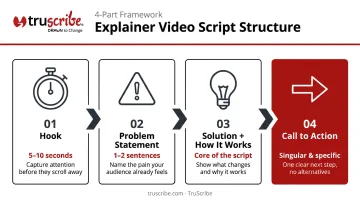
Strong explainer scripts follow a deliberate narrative arc that mirrors how audiences process information and decide to act. Whether your video runs 60 seconds or two minutes, the same four sequential beats drive the structure.
Hook: You Have 5–10 Seconds
The hook's only job is to answer the viewer's implicit question: "Is this for me?" That means no brand introductions, no company history, no mission statements. Start with a relatable pain point, a surprising fact, or a direct question.
A Wistia engagement case study found that one video lost roughly half its viewers in the first 10–15 seconds — before any substantive information was delivered. Your hook is the difference between a viewer staying and leaving.
Problem Statement
The problem section validates what the viewer already feels. Name a specific frustration, inefficiency, or gap — in the viewer's language, not yours. Keep it short. One to two sentences. The problem exists to set up the solution, not to dominate the video.
Solution + How It Works
This is the heart of the script. Introduce your product, service, or idea as the direct answer to the problem you just named. Then explain how it works — not every feature, just the mechanism that makes it effective.
Focus on the transformation: what does life look like after the solution? That framing is more persuasive than a feature list. When writing this section, keep three questions in mind:
- What specific problem does this solve?
- What's the one mechanism that makes it work?
- What does success look like for the viewer?
This structure maps naturally to whiteboard animation, where each beat of the script is reinforced through sequential drawing that directs viewer attention. In TruScribe's Scribology approach, for example, every visual reveal is timed to the narration beat it supports — so audio and visual information reinforce each other rather than compete.
Call to Action (CTA)
A strong CTA is singular, specific, and low-friction. Compare:
- Weak: "Learn more on our website"
- Strong: "Book a 15-minute demo" or "Download the onboarding checklist"
Wistia's analysis of more than 36,000 video CTAs found an average conversion rate of about 16% — with significant variation by placement and specificity. The CTA should feel like a natural next step, not a sales push bolted onto the end.
How to Write an Explainer Video Script: Step-by-Step
Step 1: Define Your One Core Message
Before writing a single word, answer this: "If viewers remember only one thing from this video, what should it be?"
Everything that doesn't support that one message gets cut. This step prevents the most common explainer script failure — trying to say everything in 90 seconds and communicating nothing clearly.
A useful test: if you only had 30 seconds, what would you keep? That's your core message.
Step 2: Know Exactly Who You're Writing For
A VP of HR watching an onboarding explainer has different expectations than a frontline employee watching the same video. Before scripting, pin down:
- Viewer's role — job function and organizational context
- Prior knowledge level — what they already understand vs. what needs explaining
- Primary concern — the one question they need answered
Calibrate tone, vocabulary, and examples to that specific person — not a generic audience.
Step 3: Write the Voiceover First, Then Plan the Visuals
Draft the spoken narration first to lock in message and pacing. Then annotate each beat with visual direction — what's shown on screen at that moment.
This sequence prevents two common mistakes:
- Script lines that rely entirely on visuals to make sense
- Visuals that have no connection to what's being said
Step 4: Time the Script and Cut Ruthlessly
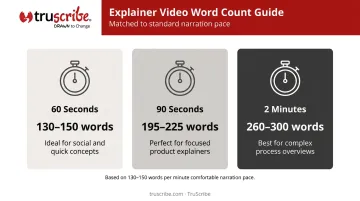
Industry voiceover resources place comfortable narration pace at 130–150 words per minute. That translates to:
| Video Length | Target Word Count |
|---|---|
| 60 seconds | 130–150 words |
| 90 seconds | 195–225 words |
| 2 minutes | 260–300 words |
Read the script aloud with a timer before finalizing. If it runs long, cut — don't speed up the delivery.
Step 5: Write for the Ear, Not the Eye
Script copy should use:
- Short, active sentences
- Conversational contractions ("you're" not "you are")
- Second-person voice ("you" not "users")
- Plain language over jargon
The Hemingway App is useful for flagging sentences that read fine but feel awkward spoken aloud. If a sentence stumbles when you say it, rewrite it.
Step 6: Get Feedback Before Recording
Read the script aloud to a colleague — don't just review it silently. Reading aloud surfaces pacing problems, unclear transitions, and awkward phrasing that silent review won't catch.
Script revisions cost nothing. Re-recording a finished voiceover — or worse, rebuilding finished animation around new narration — can add days and significant cost to a project.
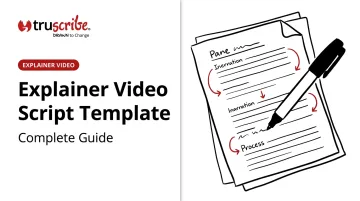
Explainer Video Script Template (Fill-in-the-Blank)
This template works for B2B explainer scripts in the 60–90 second range. It follows the 4-part structure above, with bracketed placeholders you replace with your specific content.
How to use this template: Work through each section in order. Fill in the brackets, then read the full script aloud — it should land between 150–200 words for a 60–90 second video.
Template Section: Hook
Option A — Pain-point question:
"Does your [audience role] spend [X hours] every week on [frustrating task] — with [poor outcome or consequence]?"
Option B — Surprising fact:
"Most [audience role]s say [specific problem] is their biggest [area] challenge — and most organizations are still handling it manually."
Choose the format that best matches your audience's emotional context. If they feel frustrated, use the pain-point question. If they're unaware of the scope of the problem, the surprising fact creates urgency faster.
Template Section: Problem + Solution
Problem (1–2 sentences):
"The challenge is [specific friction point]. Without a clear solution, [consequence that resonates with the viewer]."
Solution pivot (1–2 sentences):
"That's why [Company/Product] was built to [core value proposition] — so [audience] can [desired outcome] without [pain point]."
Keep this section to 3–4 sentences total. The problem sets up the solution — don't dwell on it.
Template Section: How It Works + CTA
How it works (3-step process format):
"First, [Step 1 — the setup or input]. Then, [Step 2 — the process or mechanism]. Finally, [Step 3 — the result or outcome]."
Action-oriented CTA:
"Ready to [desired outcome]? [Visit/Book/Download] [specific resource] today."
Trust-building CTA:
"Join [X] teams already using [Product] to [specific result]. [Start your free trial / Talk to our team]."
Once the problem is established and the process is clear, the CTA closes the loop — give viewers one specific next step, not two.
Script Formatting: How to Align Voiceover and Visuals
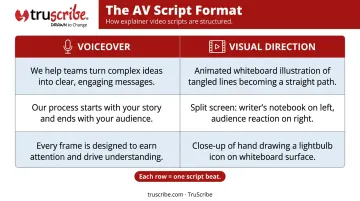
The two-column AV script format is the professional standard for explainer video production. Left column: voiceover/narration. Right column: visual direction. Each row corresponds to one beat of the script.
Example layout:
| VOICEOVER | VISUAL DIRECTION |
|---|---|
| "Does your HR team spend hours every week chasing down missing onboarding paperwork?" | Animate character at desk surrounded by stacked paper folders, looking overwhelmed |
| "The challenge is manual processes that create delays and errors from day one." | Show clock ticking, documents scattered — no resolution in sight |
| "That's why [Product] was built to automate onboarding from offer letter to first day." | Introduce product interface, clean and organized, documents flowing into place |
This format forces you to think about what the viewer sees at every moment — which prevents narration that references something not on screen.
What Effective Visual Direction Looks Like
Vague visual direction creates expensive problems in production. Compare:
- Vague: "Show the product working"
- Specific: "Animate the dashboard populating with employee data; highlight the green checkmark as each field completes"
The visual column should describe the scene, character action, or animation beat clearly enough that a designer can execute it without interpretation. Include timing cues and emphasis when the moment matters.
These principles apply across all animation styles, but they're especially consequential for whiteboard animation. In this format, each drawing reveal must map directly to its corresponding narration beat.
TruScribe's Scribology method is built on this alignment: the sequential drawing reveal is the storytelling mechanism, guiding viewer attention precisely as each concept is introduced. When a viewer hears an idea explained at the exact moment they watch it drawn, auditory and visual memory pathways engage at once — producing measurably stronger recall than narration and visuals that run out of sync.
Common Explainer Video Script Mistakes to Avoid
Overloading the Script with Information
The most frequent B2B scripting failure is trying to say everything in one video. A viewer can absorb one clear message in 60–90 seconds. Ask yourself: if you only had 30 seconds, what stays? That's your core message. Everything else belongs in a follow-up resource, a second video, or a landing page.
Mayer's coherence principle in multimedia learning research confirms this: better learning occurs when extraneous material is removed, not when more content is added.
A practical filter: If a piece of information doesn't directly support the viewer's decision or next action, cut it.
Writing for the Brand Instead of the Viewer
Scripts built around "we believe," "our platform," and "our team" lose the viewer fast. Audit your draft by counting first-person brand references versus second-person viewer references. The script should be about the viewer's problem, the viewer's outcome, and the viewer's language.
A useful rewrite test: replace every "we" with "you" and see if the sentence still works. If it does, rewrite it that way.
Weak or Missing Call to Action
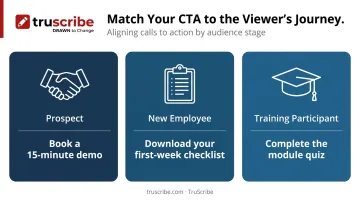
Scripts that nail the language often stumble at the finish line. Ending with "to learn more, visit our website" is a missed opportunity — the CTA needs to match where the viewer is in their journey:
- Prospect: "Book a 15-minute demo"
- New employee: "Download your first-week checklist"
- Training participant: "Complete the module quiz"
A specific CTA gives viewers a clear next step — and gives you a measurable signal that the video is doing its job.
Frequently Asked Questions
How long should an explainer video script be?
Plan for 130–150 words per minute of narration. Most explainer videos run 60–90 seconds, which means 130–225 words of voiceover copy. B2B explainers covering complex topics can extend to 2 minutes, but rarely benefit from going longer — completion rates drop as duration increases.
What is the difference between a voiceover script and a visual script?
The voiceover script is the spoken narration — what viewers hear. The visual script describes what viewers see on screen. In a complete two-column AV script, both are written side by side so audio and visuals are intentionally synchronized at every beat.
Do I need a professional scriptwriter to create an explainer video script?
Not necessarily — but the script determines whether the video works. Subject matter experts often know their topic too well to write simply, so a second set of eyes is always worth it. TruScribe offers full copywriting, editorial assistance, or can work from a draft you provide.
How is a whiteboard animation script different from a standard explainer video script?
The core four-part structure is the same. The key difference: whiteboard animation draws each element in sequence, so script pacing directly controls viewer attention at every moment — making timing precision more critical than in formats where visuals appear all at once.
What makes a B2B explainer video script different from a B2C one?
B2B scripts target a specific professional role or organizational challenge and use more measured language. The CTA reflects a longer buyer journey — "schedule a demo" or "download the guide" rather than a direct purchase prompt. The problem-solution structure stays the same; the audience context and specificity shift.
How many words should a 60-second explainer video script be?
Approximately 130–150 words of spoken narration at a comfortable delivery pace. Note that this is narration-only word count — visual direction notes in the script document are not included in that count.